
URL Authentication Generator
Last update:2026-07-14 11:08:57
The URL Authentication Generator allows you to quickly generate authenticated URLs for various authentication modes based on specific configurations. You can use these URLs to verify whether the configured URL authentication meets your requirements.
We recommend deploying the URL authentication configuration to a test environment first. Then, use the URL Authentication Generator to generate authenticated URLs for validation, so that any potential misconfiguration does not affect the production environment.
How to Use the URL Authentication Generator
- Log in to the Atomile Console, locate the domain you want to configure, and click Edit Configuration.
- In the left navigation pane, choose Access Control - Token Authentication - Token Generator.
- Select the appropriate Authentication Mode based on your requirements and configure the necessary authentication information.
- After you complete the configuration, click Generate. The system automatically generates the corresponding authenticated URL.
Example
The following example shows how to generate an authenticated URL for Mode A. The original URL that requires authentication is:
http://domain.com/browse/index.html
Based on the requirements, configure URL authentication as follows:
- Access Path (URI): The actual access path of the content in the URL, which corresponds to the
uriparameter in the URL authentication configuration. In this example, the path is/browse/index.html. - Authentication Key (
$ourkey): The key used to calculate the authentication signature. In this example, useatomile_secret. - Time Format: The format of the timestamp. In this example, use the decimal Unix timestamp by selecting
Decimal (Unix timestamp). - Signature Calculation Parameters: The method used to calculate the authentication signature. In this example, the signature is calculated using the path-key-timestamp method, so set it to
$uri$ourkey$time. - Valid Time (s): The validity period of the authentication parameters. In this example, the authentication information remains valid for 5 minutes after the authenticated URL is generated, so enter
300.
After the parameters are entered, the system automatically generates the authenticated URL, as shown below:
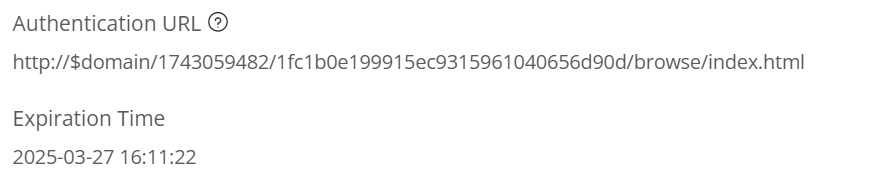
You can use the generated URL http://$domain/1716195349/ca98676765067584dae581274dd7e161/browse/index.html to send a request to the CDN edge server. If the request is made within 5 minutes and the authentication information is validated successfully, the CDN edge server returns the content to the client. After 5 minutes, the authentication information expires, the request is rejected, and a 403 status code is returned. This indicates that the URL authentication configuration is correct.
The
$domainvalue in the generated URL is only an example and is not the actual domain name used in the request. For actual use, replace it with the domain name that you have added to the Atomile platform.