
Compress Response Data
Last update:2026-07-13 15:09:17
In HTTP requests, compressing response data can effectively reduce the amount of transferred data, shorten response times, save server-side bandwidth, and improve client-side performance. If your website does not support response compression, but the user’s request header contains Accept-Encoding and the requested compression format is supported by Atomile, you can configure the Atomile platform to return files to the client in the required compressed format.
How to Configure Compression Response
- Log in to the Atomile Console and select the appropriate product.
- Go to Configuration, locate the domain you want to configure, and click Edit Configuration at the top, or click Edit to the right of the domain.
- On the configuration page, find Compression Response under Advanced Configuration, and click Modify.
- On the rule editing page, configure the following options as needed.
Effective Range
| Parameter | Description |
|---|---|
| All Requests | This rule applies to all requests sent to the associated domain. |
| Only Homepage | This rule applies only to requests for the root path, for example, http://domain/ or https://domain/. |
| Specified File Types | This rule applies to requests for specific file types. You can choose from the listed file types or define custom file types in this field. Separate multiple file types with semicolons (;), for example, ace;aac. |
| Specified URI | You can apply this rule to requests for specific URIs. Configure multiple URIs by separating them with line breaks. Note that the URIs must not include http:// or https://; enter only the URI path. For example, if the full URL is https://domain/browse/index.html, configure only /browse/index.html. |
| Specified Directory | This rule applies to all requests for specified directories. Each directory must begin and end with / and can contain letters, numbers, and certain special characters, including underscores (_), hyphens (-), percent signs (%), and periods (.). For example, /file/1%1/ indicates that the rule applies to requests for http://domain/file/1%1/ and all files under that directory. Separate multiple directories with line breaks. |
| URL Regular Expression | You can also enter a regular expression directly. It does not need to start with /. The platform automatically prefixes the URL with ^https?://[^/]/. For example, .*.jpg$ indicates that requests for JPG files across all domains associated with this rule match this policy. |
Specified MIME Types (New)
If Compression Response is enabled but this field is left empty, only text file types are compressed by default. You can customize multiple MIME types for compression, separated by semicolons (;), for example, application/x-javascript;text/css;application/json.
Common image file types such as PNG, JPG, and JPEG, as well as audio and video file types such as MP4, AVI, and WMV, are typically already compressed. Therefore, configuring these file types for response compression is not recommended.
Compression Response Type Configuration
Currently, Atomile supports the following two types of compression response:
- Compression Setting: This optional setting enables standard compression based on the
Accept-Encodingrequest header sent by the client. Currently supported formats aregzipanddeflate. The default value is No, which means standard compression is disabled. - Brotli Compression: If the client request includes the header
Accept-Encoding: br, Brotli compression is applied. Brotli is supported only by certain browsers, so verify browser compatibility before enabling this option.
After you complete the configuration, click OK, and then click Next to submit your settings. To minimize any potential impact on your production environment, we strongly recommend performing a Pre-deploy test in a staging environment. This helps ensure that your configuration is correct before it goes live.
After you verify that the settings are correct, click Deploy Now to apply them to the live environment. The configuration typically takes effect within 3 to 5 minutes. For detailed guidance on pre-deployment testing and how to verify the effectiveness of your configuration, refer to Deploy the Configurations to Staging Environment for Validation.
Best Practices
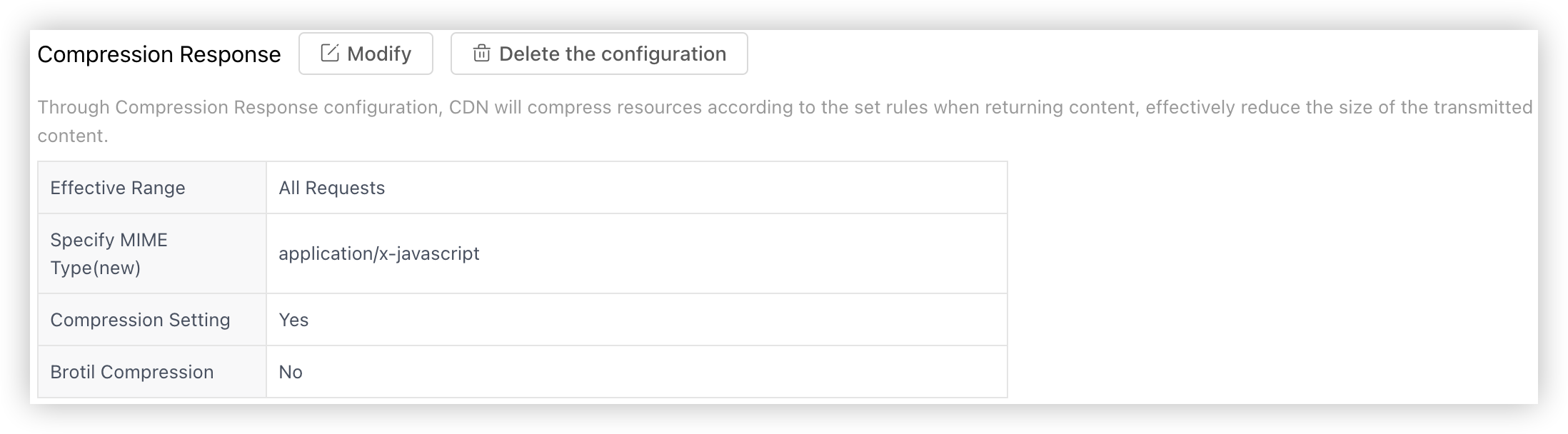
Example 1: Compress Responses for Specific MIME Types for All Requests
For the domain associated with this rule, if the MIME type of the resource requested by the user is application/x-javascript, the CDN server compresses the response before returning it to the client.
Notes
The Atomile CDN platform uses a default minimum file size of 2 KB for compression. Files smaller than this size are not compressed, even if Compression Setting is enabled.